
Content Browser
The Content Browser is your project's file management hub with an intuitive dual-pane interface for organizing scripts, images, and folders.
Overview
The Content Browser is located at the bottom of the editor window. It provides a visual way to organize your project files, create new content, and navigate between different scripts and assets. The panel is collapsible - click the header to minimize it to a thin bar when you need more canvas space. The collapsed or expanded state is remembered between sessions.
Key Features:
- Create & Organize: Create folders, scripts (.sfe files), characters (.sfc files), markdown files (.md) and User Interface files, and import images (PNG, JPEG, GIF, WebP, APNG), audio (MP3, WAV) and fonts (TTF, OTF)
- Rename & Delete: Manage files with automatic reference updates throughout your project
- Duplicate Files: Quickly copy existing scripts and characters
- Multi-Selection: Select multiple items with Ctrl+Click or Shift+Click
- Drag & Drop: Move files and folders by dragging them to new locations
- Change Tracking: See which files have unsaved changes with visual indicators
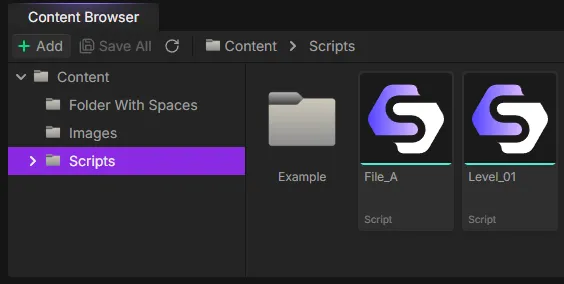
Interface
Dual-Pane Layout
The Content Browser uses a dual-pane design with a tree view (left) and folder view (right):
Tree View (Left Pane):
- Hierarchical folder structure you can expand/collapse
- Click folders to view their contents
- Current folder highlighted with purple background
Folder View (Right Pane):
- Shows all files and subfolders in the current directory
- Double-click files to open them
- Double-click folders to navigate into them
- Image files show thumbnail previews
- The redesigned grid is virtualized, so folders with hundreds of files scroll smoothly
Visual Indicators
- Yellow Asterisk (*): File has unsaved changes
- Teal Bottom Border: Script files (.sfe)
- Lime Bottom Border: Image files (PNG, JPEG, GIF, WebP, APNG)
- Orange Bottom Border: Audio files (MP3, WAV)
- Purple Bottom Border: Character files (.sfc)
- Sky Blue Bottom Border: User Interface files
Hover for File Info
Hover over any file or folder in the folder view to see an info tooltip with details about that item:
- Type: A friendly label for the file (Script, Character, Image, Audio, Folder, and so on)
- Size: File size in human-readable units
- Modified: When the file was last changed
- Dimensions: Width × height for image files
- Duration: Playback length for audio files
- Contents: Number of folders and files inside a folder
Toolbar
- Add Button: Create folders, scripts, characters, markdown files and User Interface files, or import images, audio and fonts
- Save All: Save all changed files at once (shows count)
- Refresh: Force a manual reload of the folder structure (rarely needed now that the browser updates live - see below)
- Watcher Health Indicator: A small status icon next to Refresh that warns if live updates aren't fully working
- Breadcrumb Path: Shows current location, click to navigate up
Live Updates
The Content Browser watches your project's Content folder on disk and updates automatically when files change outside the editor - for example, when you add an image with another tool, drop files in via your OS file manager, or save an asset from an external editor. You no longer need to press Refresh to see external changes.
- New & changed files appear automatically: Files created, updated, or moved on disk show up in the browser without a manual refresh. Image and audio thumbnails re-read their contents when the underlying file changes.
- Favorites and folder colors are preserved on rename: If you rename or move a folder outside the editor, your favorite markers and custom folder colors follow it to the new location.
- Asset tabs close on external delete: If an open image or audio file is deleted on disk, its tab closes automatically (these tabs have no unsaved state to lose).
Watcher Health Indicator
When live updates are working, the indicator stays hidden - no news is good news. A yellow warning icon means live updates are only partially working, and a red icon means they're unavailable (use the Refresh button to reload manually). Hover the icon for details.
Resizable Interface
Resize the Content Browser by dragging the border with the canvas. Resize the tree/folder panes by dragging the divider between them. The editor remembers your layout preferences.
File Operations
Creating Content
Create Folders:
- Click "Add" → "Folder" or right-click empty space → "Add Folder"
- Type name and press Enter (Escape to cancel)
Create Scripts:
- Click "Add" → "Script"
- Type name (the .sfe extension is added automatically)
- New scripts include a Start node and End node by default
Import Images:
- Click "Add" → "Import Image"
- Select PNG, JPEG, GIF, WebP or APNG files from your computer
- Images are copied into your project folder
Import Audio:
- Click "Add" → "Import Audio"
- Select MP3 or WAV files from your computer
- Audio files are copied into your project folder
Create Characters:
- Click "Add" → "Character"
- Type name (the .sfc extension is added automatically)
- Double-click to open and edit character variables
Create Markdown Files:
- Click "Add" → "Markdown"
- Type name (the .md extension is added automatically)
- Double-click to open the built-in markdown editor
- Three view modes: edit, preview, and split (side-by-side)
- Supports GitHub-Flavored Markdown including tables, task lists, strikethrough, and syntax-highlighted code blocks
Create User Interface Files:
- Click "Add" → "User Interface"
- Type name (the extension is added automatically)
- Double-click to open the User Interface editor
- A new file starts as a complete, playable dialogue box built from ordinary elements, so you can edit it rather than build one from nothing
- See User Interface Files below for what you can do with one from here
Import Fonts:
- Click "Add" → "Font"
- Select TTF or OTF files from your computer
- Fonts are copied into your project folder and can then be picked in a User Interface file's text styles
Importing at the Project Root
Importing an image, audio file or font through the right-click menu while you are at the top level of Content used to fail with an "Invalid destination path" error. It now lands in the content root, exactly like dragging the same file in does.
Renaming (F2)
Select a file or folder and press F2 (or right-click → Rename). Type the new name and press Enter.
Automatic Reference Updates
When you rename or move files, StoryFlow Editor automatically updates all references throughout your project - including Run Script nodes, dialogue images, open tabs, and the startup script setting. No broken links!
Deleting (Delete)
Select items and press Delete (or right-click → Delete). When you delete, the editor first scans your project for anything that points at the files you're removing. If nothing references them, a simple confirmation dialog appears - and for folders it shows the number of files contained inside so you know exactly what will be removed.
- Deletion is permanent and cannot be undone
- Open files are automatically closed
- Run Script node references are cleared
When other files reference the item
If the files you're deleting are still referenced elsewhere (for example, an image used by dialogue nodes or a script called by a Run Script node), the dialog instead shows how many references were found and gives you three choices:
- Cancel: Back out and delete nothing.
- Force Delete: Delete anyway and break the existing references.
- Replace References: Pick a same-type replacement for each referenced file (or set one replacement for a whole file type at once), then delete. Every reference is repointed to your chosen replacement so nothing breaks. If a replacement can't be applied, nothing is deleted and you can retry or fall back to Force Delete.
Reference-Aware Deletion vs. Rename Updates
This deletion dialog handles removing a referenced file. Renaming or moving a file is different - those references are rewired automatically with no prompt (see Automatic Reference Updates).
Duplicating Files
Right-click a file and select "Duplicate". A copy is created with "_01" appended to the name (or "_02", "_03", etc.).
Opening Files
Double-click a script file or press Enter to open it. Files open in new tabs at the top of the editor. Your viewport position (zoom and pan) is automatically restored when switching between files. Open tabs are automatically saved and restored when you reopen the editor.
Already-Open Files Just Get Focus
Choosing a file that is already open in the window focuses its existing tab instead of reading it back from disk and rebuilding it. That makes reopening a large script instant, and it means your unsaved edits are never at risk: the copy in the editor stays authoritative. The same shortcut applies when you arrive from Global Search or the References tab.
Tab Management:
Right-click any tab to access the tab context menu:
- Close Tab (
Ctrl + W): Close the clicked tab - Close All Tabs: Close every open tab
- Close Other Tabs: Close all tabs except the clicked one
- Close Tabs to the Right: Close all tabs to the right
- Close Tabs to the Left: Close all tabs to the left
Use Ctrl + Shift + T to reopen the last closed tab. Up to 10 recently closed files are tracked.
Saving Files
- Ctrl + S: Save the active file
- Save All: Save all changed files at once (button in toolbar or File menu)
Reload From Disk
When a script (.sfe) or markdown (.md) file changes on disk outside the editor, an open tab for it handles the change automatically:
- No unsaved edits: The tab reloads the new contents from disk automatically, with a subtle notification.
- Unsaved edits: The editor never clobbers your work. A conflict prompt offers Reload (discard your in-editor changes and take the disk version) or Keep mine (dismiss and keep editing).
You can also reload manually at any time: right-click a file and choose Reload from Disk, or assign a keyboard shortcut to the command in Settings → Keybindings (it ships unbound). Script reloads are undoable with Ctrl+Z, which restores the pre-reload editor state; markdown reloads are not undoable.
Audio Files
Audio files (MP3 and WAV) can be imported into your project for use in dialogue nodes and Play Audio nodes.
Using Audio:
- Import audio via "Add" → "Import Audio" or drag files into the Content Browser
- Select audio files in dialogue nodes or Play Audio nodes
- Preview audio directly in the editor with built-in playback controls
- Enable looping for background music or ambient sounds
Audio Organization
Organize audio files in dedicated folders like "Audio/Music" and "Audio/SFX" for easy navigation. Use descriptive names like "battle_theme.mp3" or "door_open.wav" to find files quickly.
Character Files
Character files (.sfc) define reusable characters with portraits and custom variables that can be referenced throughout your project.
Working with Characters:
- Create characters via "Add" → "Character"
- Double-click a character file to open the character editor
- Set the character name, portrait image, and custom variables
- Reference characters in dialogue nodes to display their name and portrait
- Access character variables using the Get Character Variable node
Character Variables:
Each character can have custom variables of any type (boolean, integer, float, string, enum) for tracking relationship levels, quest states, or any character-specific data. Characters also support array variables for storing inventories, skill lists, or dialogue history. Access these using Get Character Variable and Set Character Variable nodes.
User Interface Files
A User Interface file holds a whole interface: an element tree you lay out on a Designer canvas, keyframe animations and a node graph that reacts to clicks and to the story. Create one with "Add" → "User Interface" and double-click it to open the editor.
Dragging one into another interface:
Any User Interface file can be used as an element inside another one, and the Content Browser is one of the places you do that from. Drag a file out of the folder view and drop it on any of three surfaces of an open User Interface editor:
- The Designer canvas - places a copy of that interface as an element, already pointing at the file
- The Hierarchy - the same, but you choose exactly where it lands in the tree
- The script graph - drops a node already bound to that file, for spawning or reaching into it from script
Invalid targets do not light up while you drag, so you can see where a drop will land before you release. A file cannot be dropped into its own editor, which is what stops an interface from containing itself.
Renaming and Deleting Still Apply
User Interface files take part in the same reference machinery as everything else. Renaming or moving one rewires the interfaces that place it and the nodes that reference it, and deleting one that is still in use brings up the same reference-aware dialog described above. Use View References on a file first if you want to see what would be affected.
Multi-Selection & Drag-Drop
Multi-Selection
Perform batch operations on multiple files and folders:
- Ctrl + Click: Toggle individual items on/off
- Shift + Click: Select a range from last selected to clicked item
- Delete multiple items at once
- Drag multiple items to move them together
Drag and Drop
Click and drag files or folders to move them:
- Drag from either tree view or folder view
- Drop onto folders in tree or folder view
- Valid drop targets show purple highlight
- Multi-selected items move together
- All references update automatically after moving
Move Restrictions
You cannot drag a folder into itself or its subfolders (circular moves are prevented). The root "Content" folder cannot be renamed or deleted.
Keyboard Shortcuts
| Shortcut | Action |
|---|---|
F2 | Rename selected item |
Delete | Delete selected item(s) |
Enter | Open file or navigate into folder |
Ctrl + Click | Toggle item selection (multi-select) |
Shift + Click | Select range of items |
Ctrl + S | Save active file |
Ctrl + W | Close active tab |
Ctrl + Shift + T | Reopen last closed tab |
Escape | Cancel rename operation |
Automatic Reference Updates
When you rename or move files, StoryFlow Editor automatically updates all references throughout your entire project:
- Run Script Nodes: All nodes pointing to the file update to the new path
- Dialogue Images: Background image paths update in all dialogue nodes
- Open File Tabs: Tab titles update if the file is currently open
- Startup Script: Project setting updates if you rename/move the startup script
- Undo/Redo History: File references in history are updated
This means you can reorganize your project structure at any time without breaking existing connections or manually updating references.
Context Menu
Right-click files or folders to access operations like Open, Rename, Delete, Duplicate, Reload from Disk, and Show in File Explorer (opens Windows Explorer at that location).
Validation Rules
- Duplicate Names: Cannot create two items with the same name in the same folder
- Reserved Names: Certain filenames are reserved by the system (like "global-variables")
- Invalid Characters: Names cannot contain special characters reserved by Windows
- File Extensions: Extensions are preserved automatically during rename
Organization Tips
Create folders to organize by chapters, scenes, or features. Use descriptive script names like "ChapterOneIntro" or "MerchantConversation". Keep images in dedicated folders like "Backgrounds" or "Characters" for easy access.